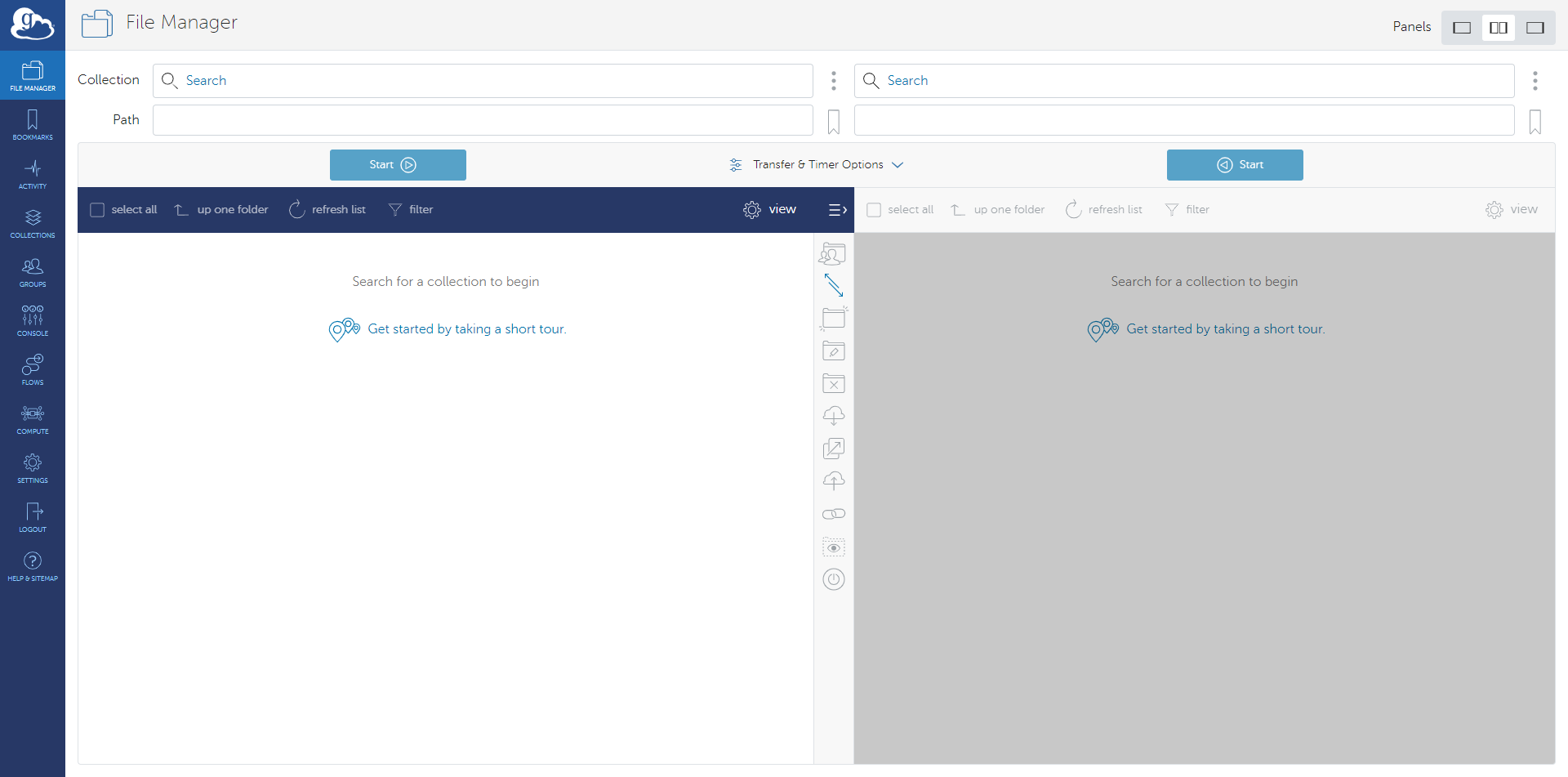
Setting Up Source and Destinations
First we must assign the source and destination collections.
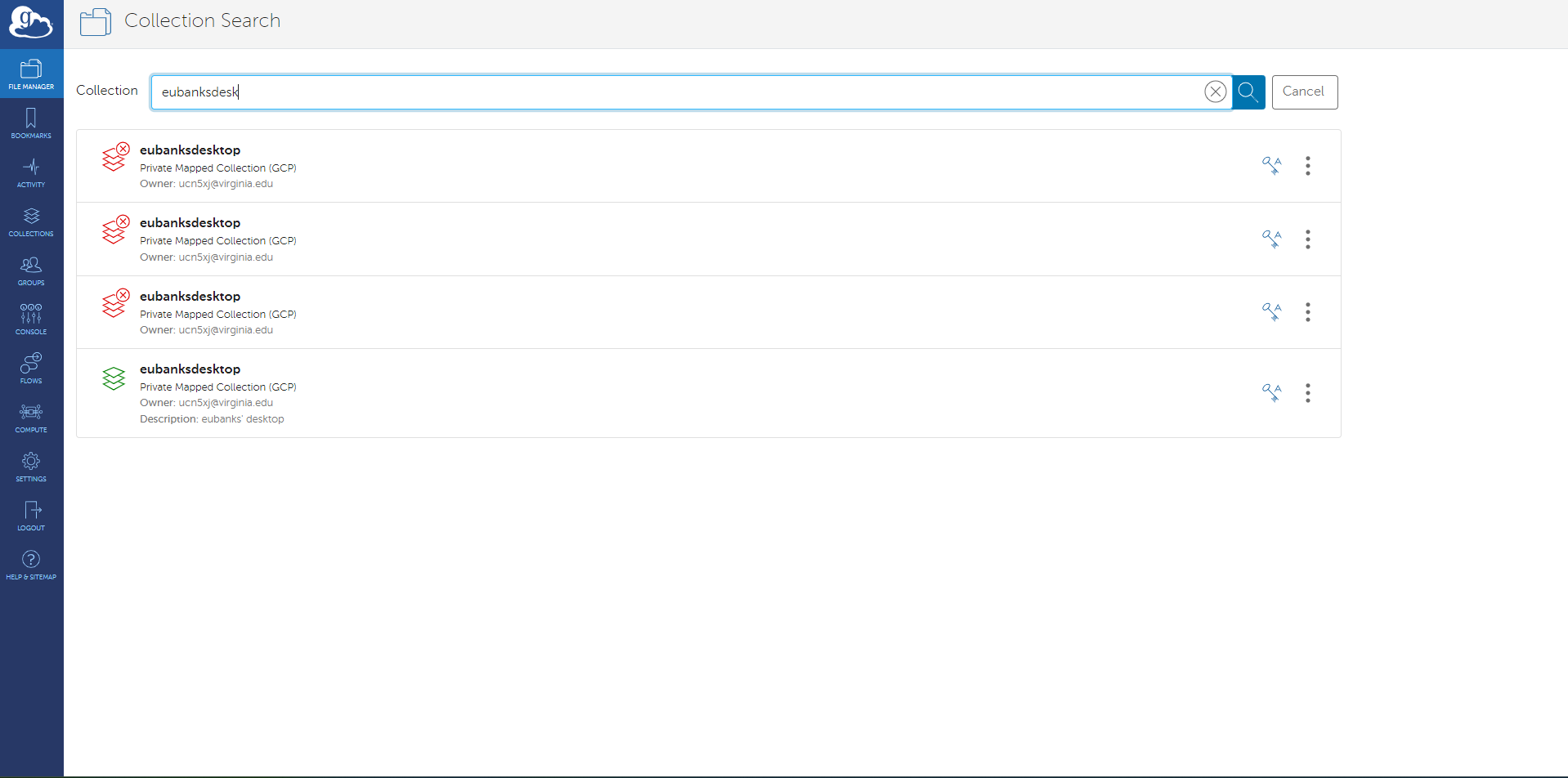
Start typing into the Collection textbox. A search bar will appear. Type until you find your personal collection name in the dropdown. A green icon to the left of the name indicates an active collection. Red icons show inactive collections.
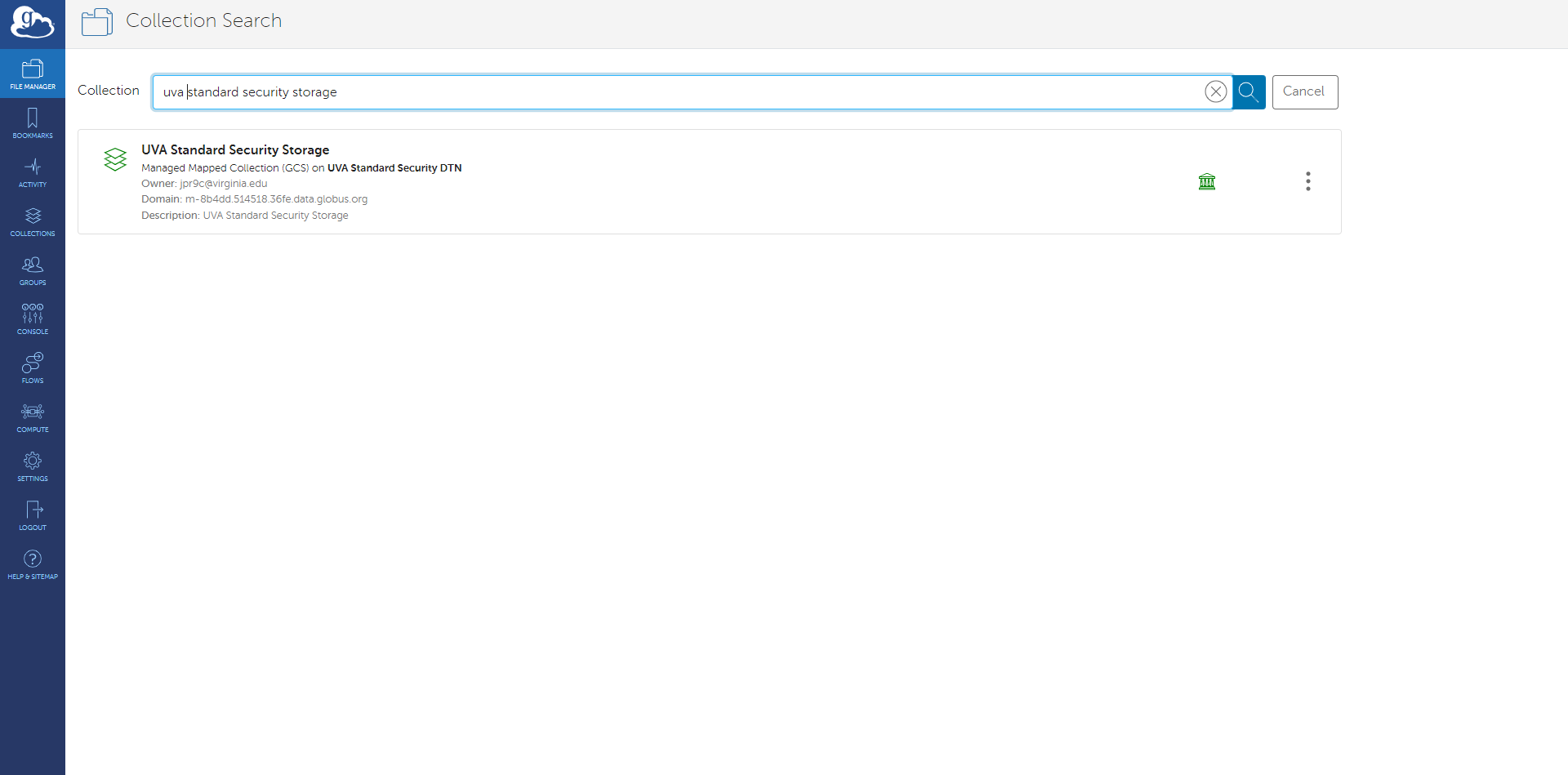
Do the same thing for the UVA collection you are targeting. Check again for the green “stack” icon for an active collection. In this case we also see a green “columns” icon. This indicates the collection is managed.