Launching a FastX Session

Most users should choose the MATE session.
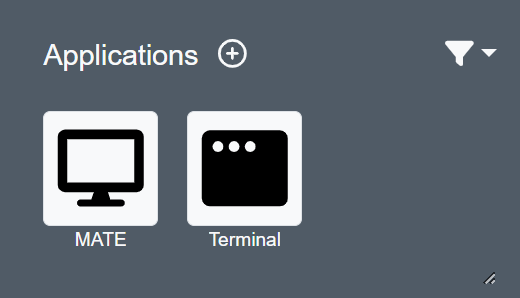
Applications pane with two icons: one for 'MATE' showing a computer monitor, and one for 'Terminal' showing a terminal window with three dots.
Starting a MATE session

Click the icon, then click the play button on the MATE session under “Disconnected Sessions” on the page. This will open a new window with two options: Browser Client, and Desktop Client.
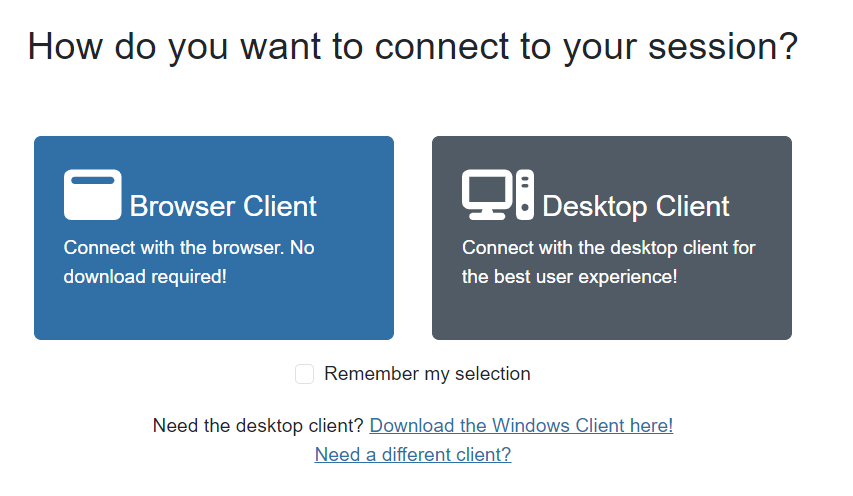
Webpage prompting user to choose a connection method. Two options are shown: 'Browser Client' and the text 'Connect with the browser. No download required!', and 'Desktop Client' with the text 'Connect with the desktop client for the best user experience!'
Browser or Desktop Client

Select the Browser Client to connect to your session.

Previous
Next
RC Logo RC Logo © 2025 The Rector and Visitors of the University of Virginia