Job Composer

The job composer tab allows you to create and submit a job to run on the cluster.
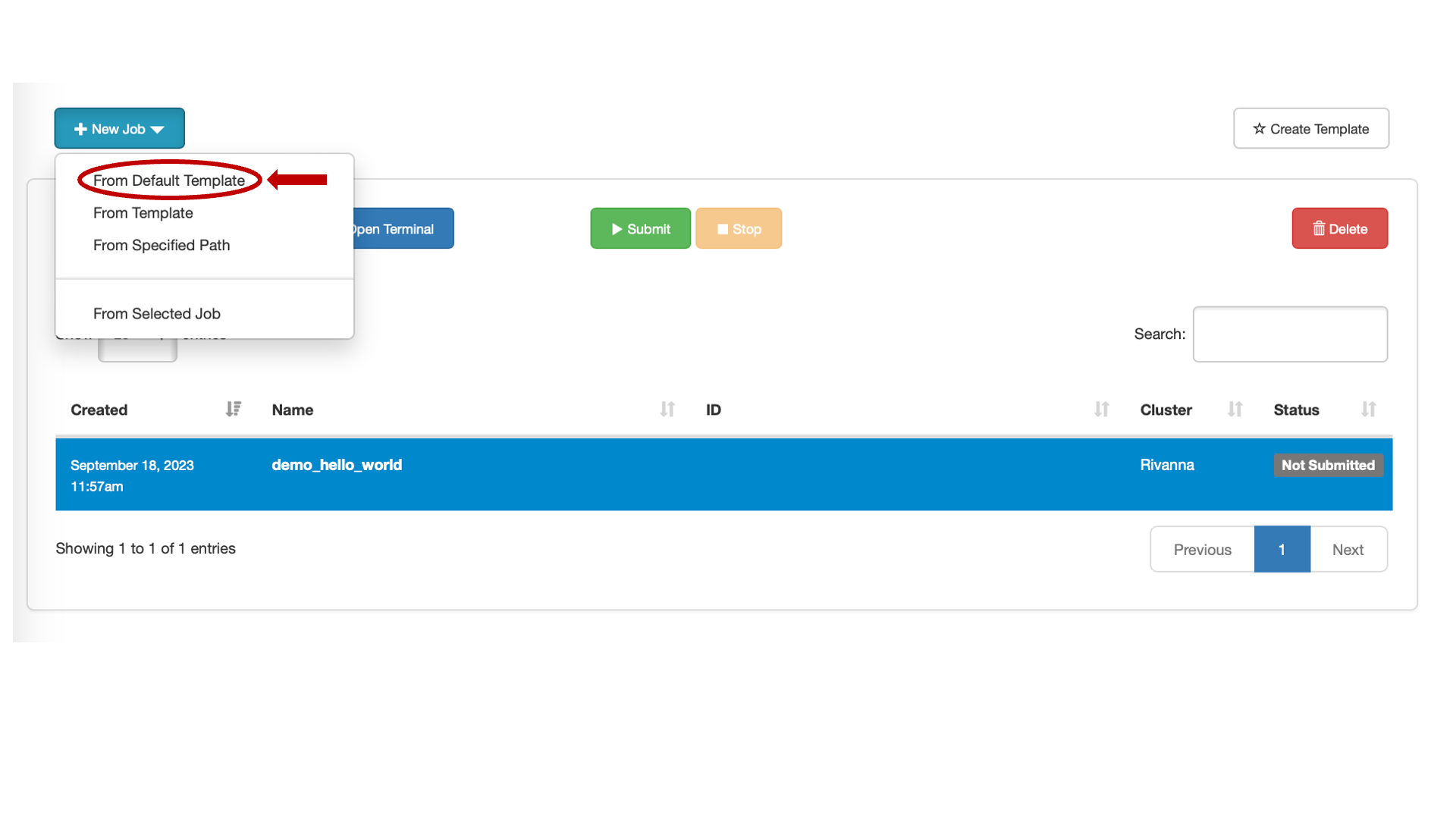
UVA Open OnDemand Job Composer interface showing a 'New Job' dropdown with a 'From Default Template' option. A job table lists one entry: 'demo_hello_world' on the Rivanna cluster, not yet submitted. Submit, Stop, and Delete buttons, and a search bar appear above the table, with pagination controls at the bottom.
OOD Job Composer

Selecting the default template will automatically create a submission script called demo_hello_world.slurm located in /home/computingID/Rivanna/data/sys/myjobs/projects/default/1 on the file system:
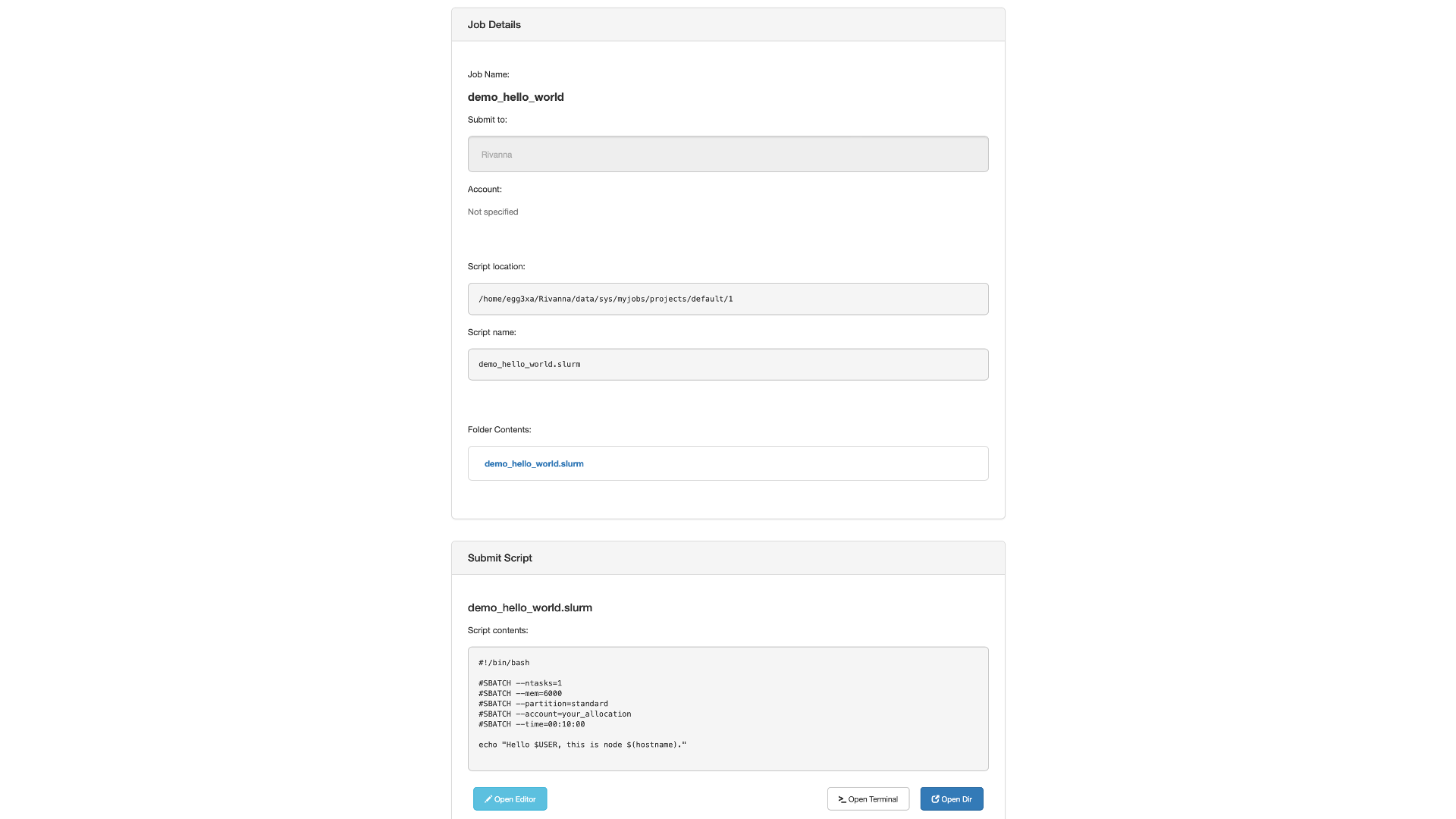
A page with two sections: 'Job Details' and 'Submit Script'. The 'Job Details' section lists details including the job name, the cluster to which the job is to be submitted, and a link to folder contents. The 'Submit Script' section displays the contents of the script and includes buttons labeled: Open Editor, Open Terminal, and Open Dir.
Default Template Job

Before submitting the job, your_allocation on the #SBATCH --account=your_allocation line must be replaced with the name of the allocation you’re a member of. We will review editing files later. Once the correct allocation name is edited in, you can click “Submit” to queue your job. It will be given a corresponding Job ID, and once it’s completed, the Folder contents will now contain a corresponding output file that contains the instructions from the submission script:
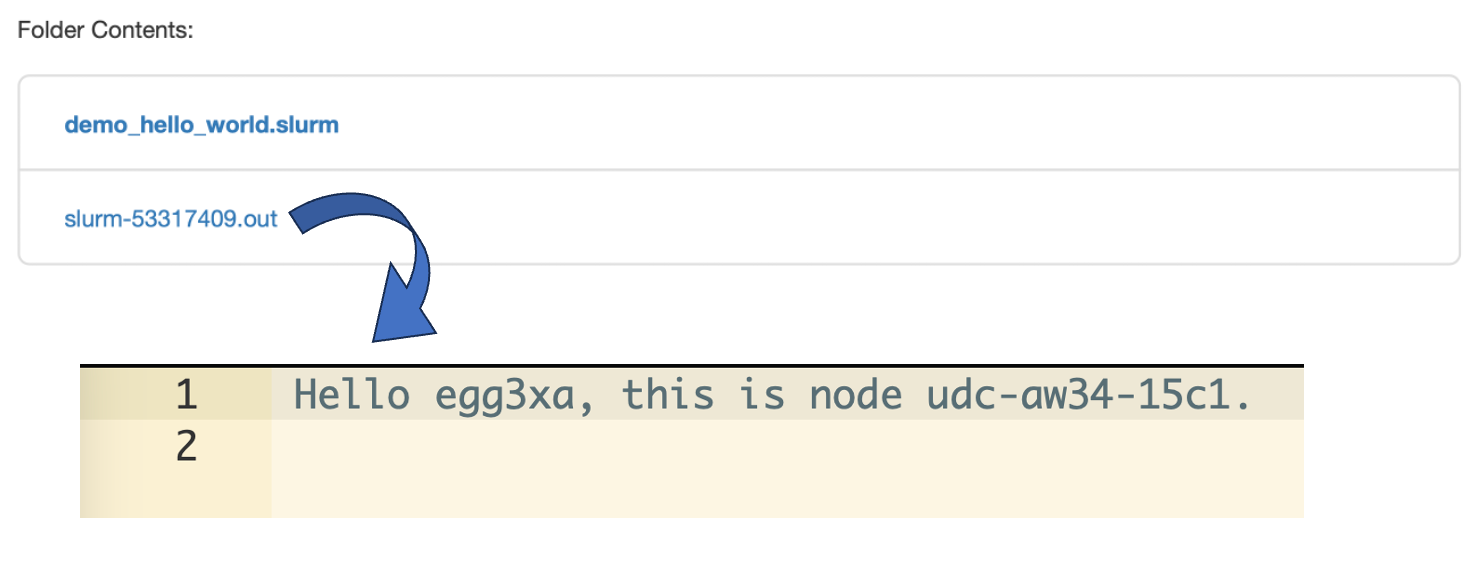
A list of links to Folder contents, including a link to a SLURM script and an out file. Clicking the out file opens a text file that says the username and node name.
Default Template Output

There are several job templates that can be run in addition to the default hello world option under New Job > From Template:
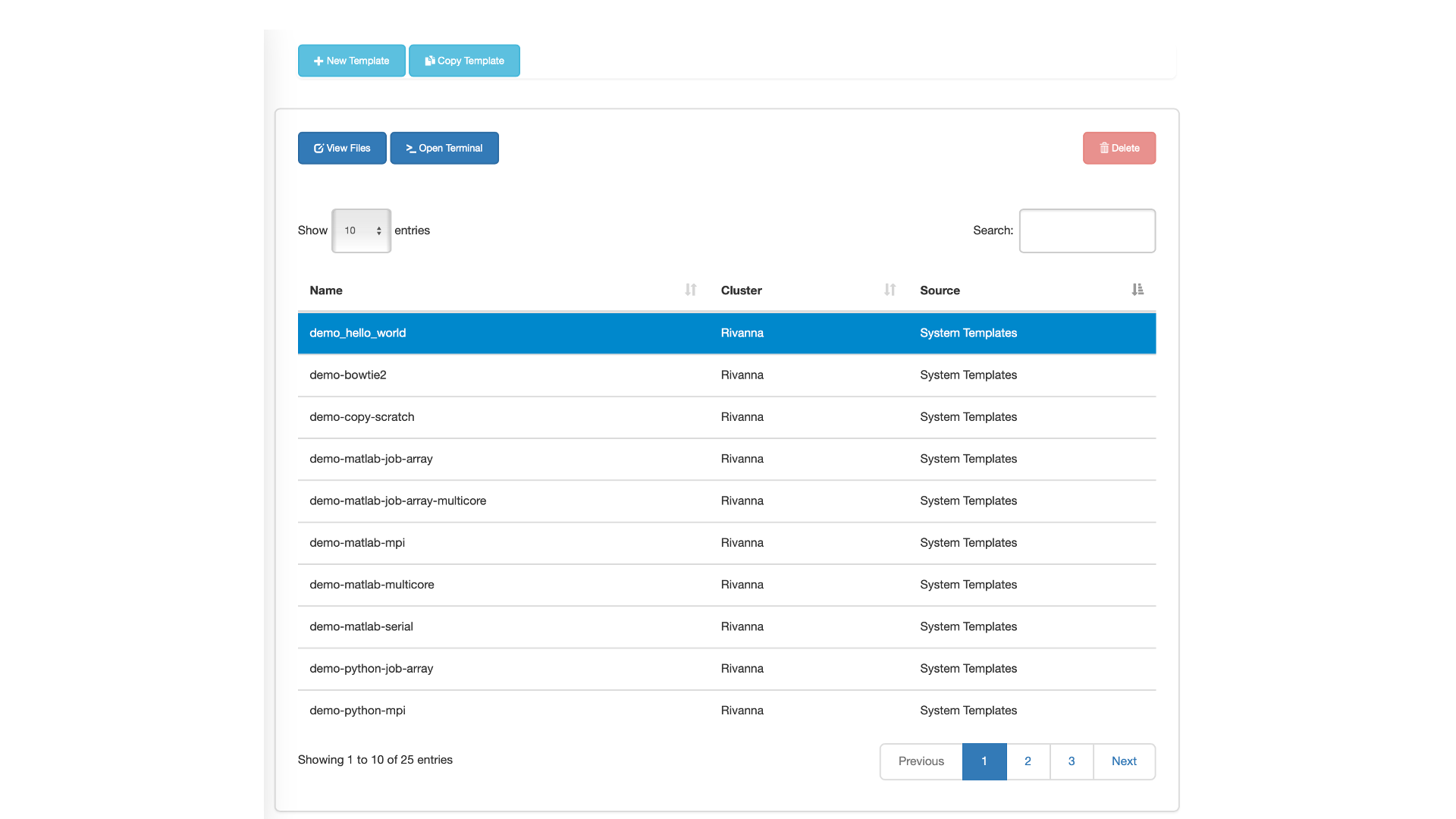
A list of job templates with multiple pages.
Template Options
Previous
Next
RC Logo RC Logo © 2025 The Rector and Visitors of the University of Virginia