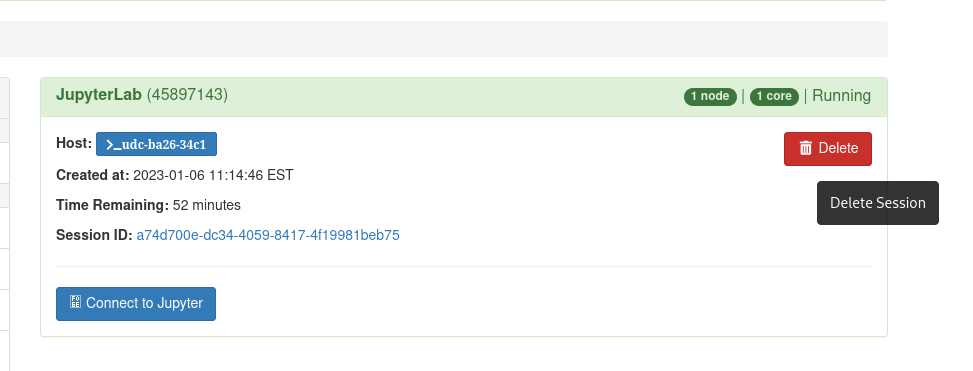
Using and Closing an Interactive Session
If have not previously used the OOD JupyterLab interactive app, you must select a kernel before initiating the notebook. Once JupyterLab is set up, you can also start another notebook with a different kernel by selecting File->New Notebook. It will then show a dropdown with the kernels available to you.
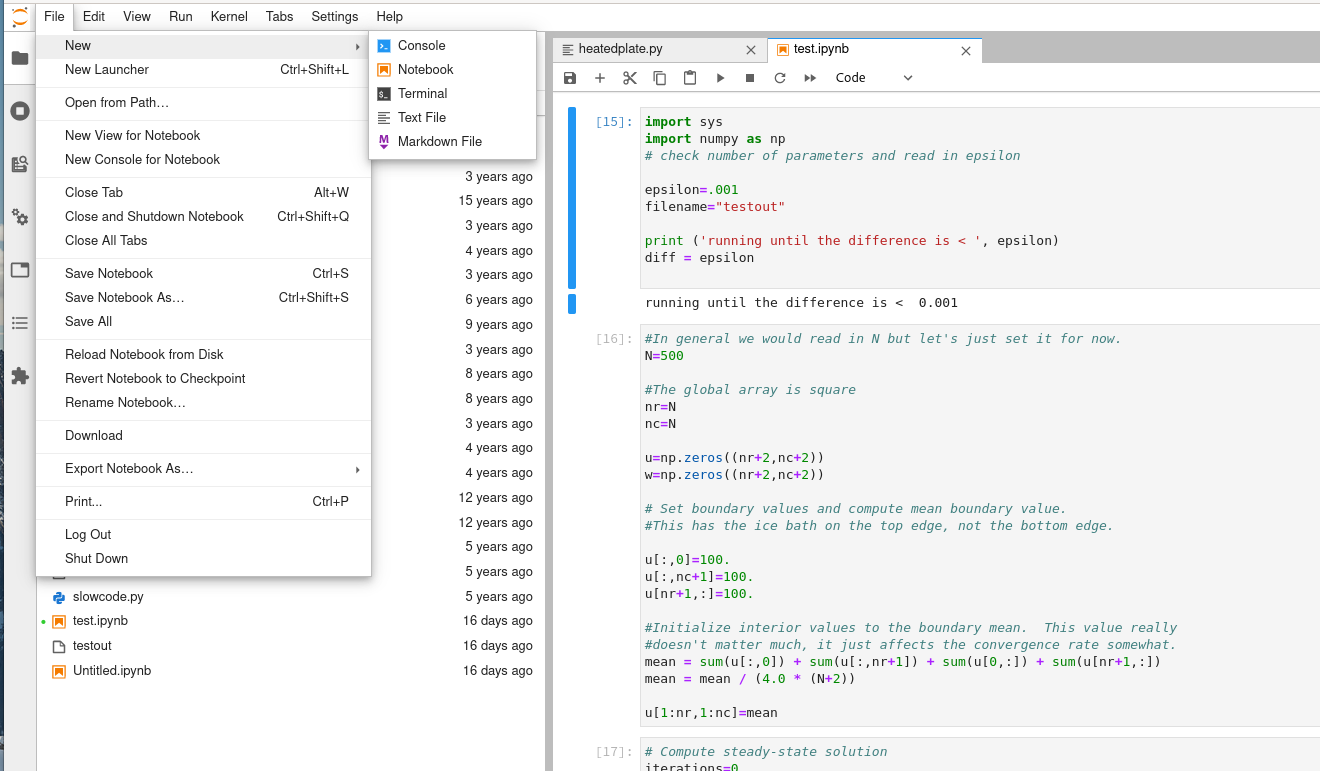
If you are accidentally disconnected, you can go back to the OOD “My Interactive Sessions” tab and reconnect. However, anything left running in a cell may have been terminated. This is due to a limitation of Jupyter, not OOD or the HPC cluster, and does not apply to all interactive apps.
Remember to delete your session if you finish early. Closing your browser tab does not end the session.