Using VS Code on OOD
Open OnDemand
- Interactive jobs on compute nodes
- Access to your files in your HPC Account
- Access to available software modules
Open OnDemand (ood.hpc.virginia.edu)
VS Code Server
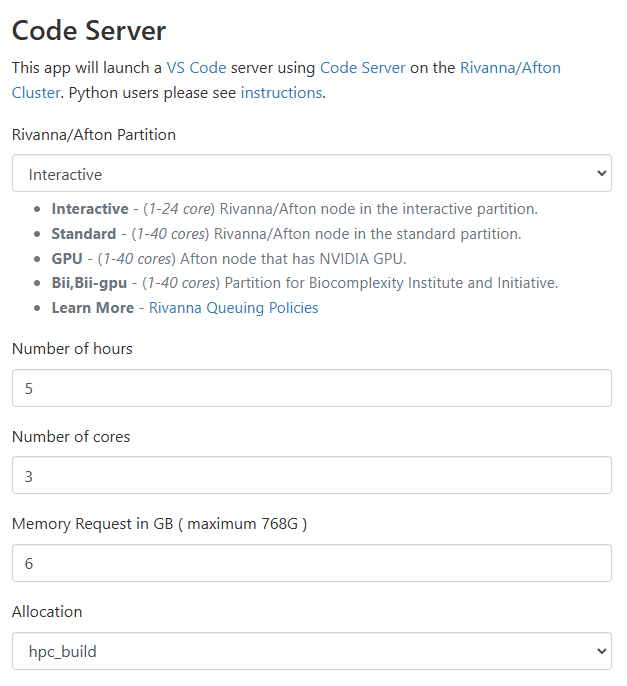
- Some keyboard shortcuts don’t work
- Navigate just as you would on your local
- “New Window” opens a new tab
- Any changes you make on VS Code Server are on the cluster
- They don’t sync with your local
- You don’t need to install software on your own computer
Getting Started
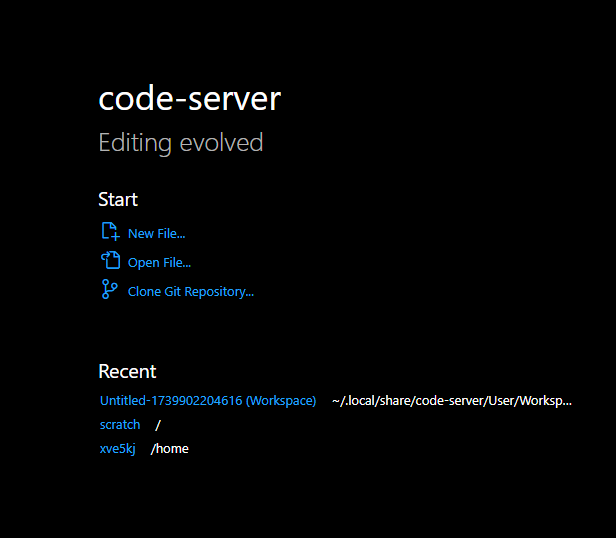
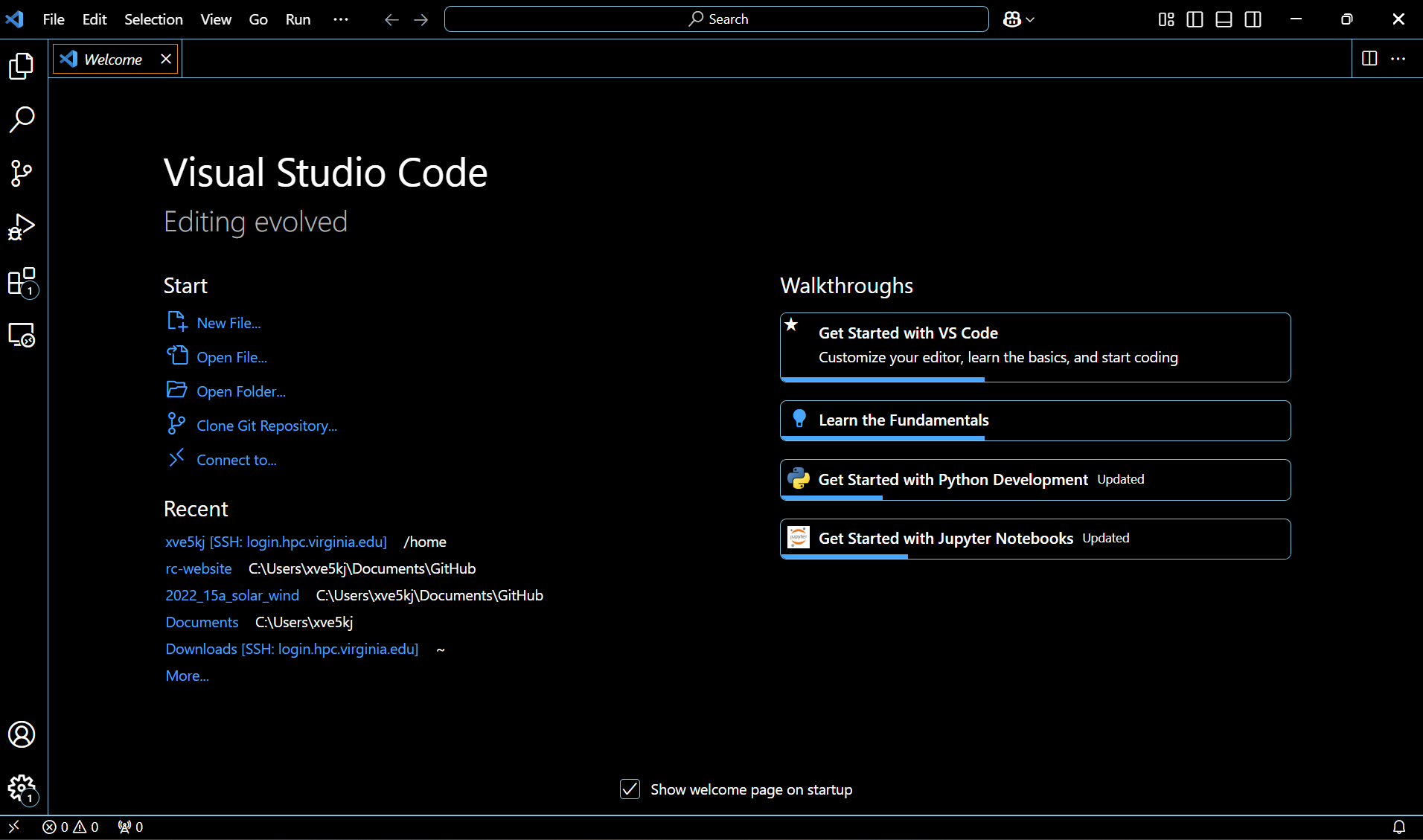
The welcome page upon launch provides you with a variety of options to get started.
Working with Files and Folders
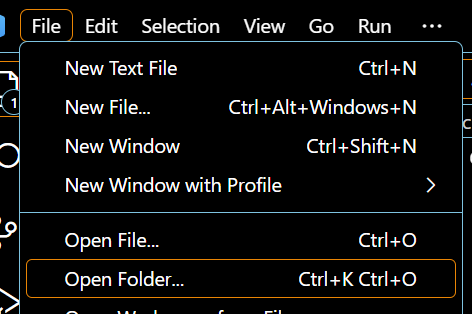
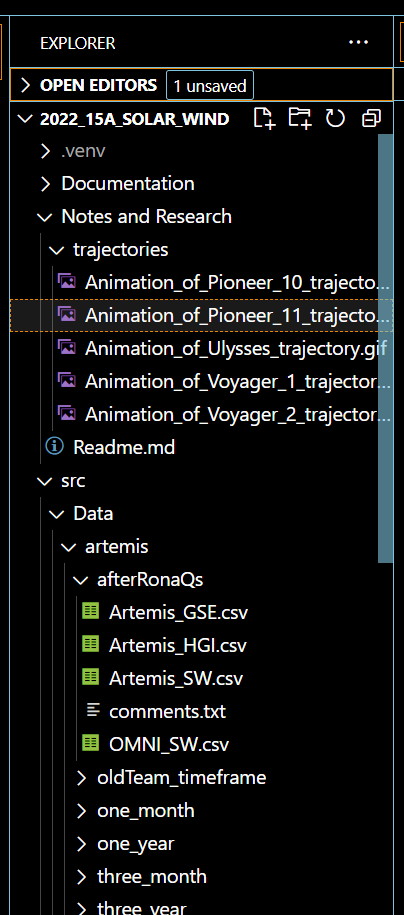
Open a Folder
Select File > Open Folder…
Appears in the explorer for easy navigation
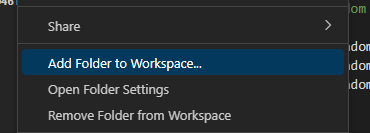
Add a Folder
Select File > Add a Folder to Workspace…
Appears in the explorer for easy navigation
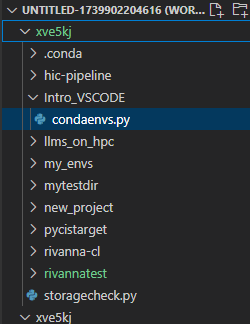
Workspaces
Save a Workspace:
Select File > Save Workspace As
Open a Workspace:
Select File > Open Workspace from File…

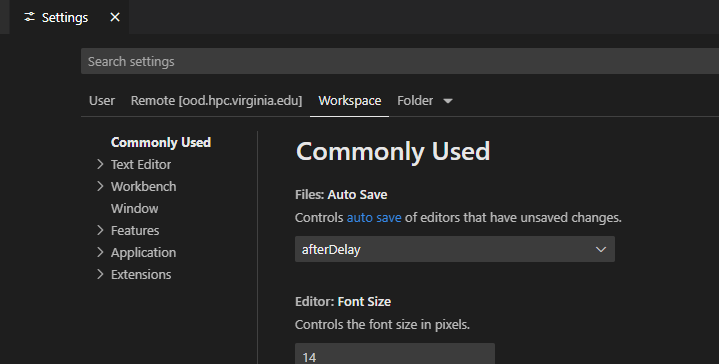
Workspaces are configurations of your files and folders, so it can easily let you access your project configurations. You can even modify specific settings!

Installing Extensions
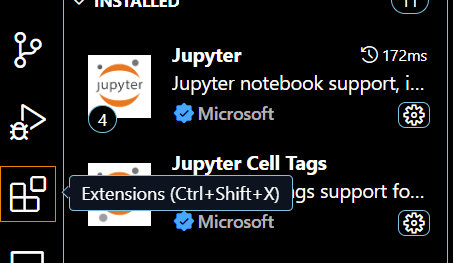
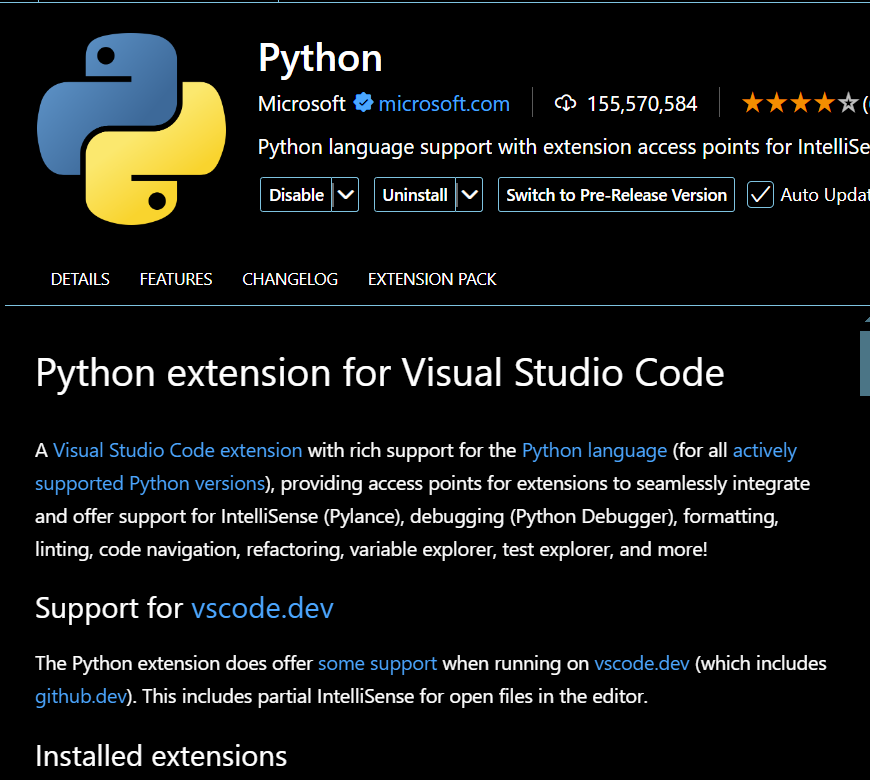
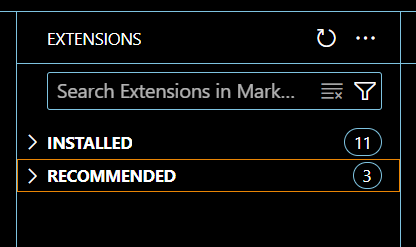
Access the marketplace in your web browser, or open the extensions tab in VS Code (Ctrl+Shift+X).
Install Python and Jupyter
Creating a New File
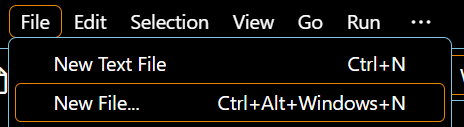
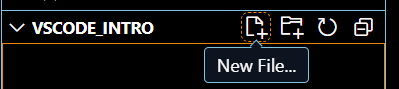
Select File > New File…
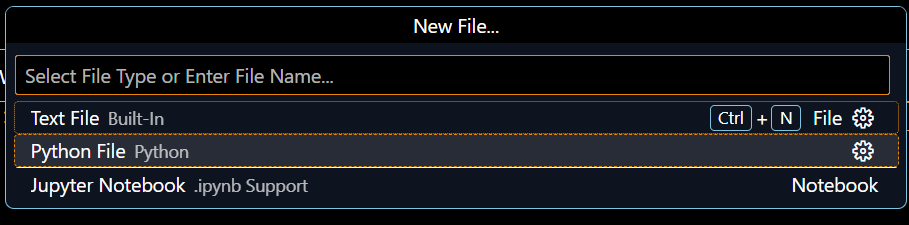
Select your file type
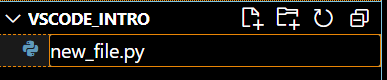
Make sure it is in the right folder, or move it to the correct folder in the file explorer on the left